Output Modes
In the simplest of terms, TubePress is software that generates HTML that you can integrate into your website. This page describes the primary types of content that TubePress can build.
Contents |
Video Thumbnail Galleries
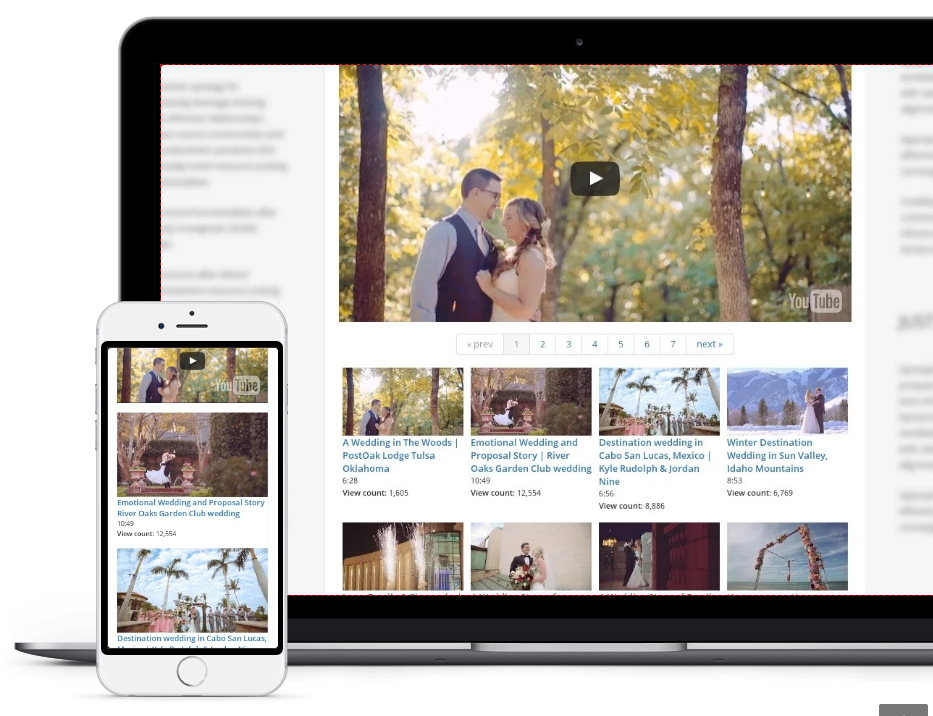
Creating video galleries is how TubePress made a name for itself. The software lets you easily embed beautiful, highly-functional thumbnail galleries throughout your site, and gives you complete control over the entire process. You can see a live version of a TubePress thumbnail gallery here.
The process to create a video gallery is always the sameā¦
- Choose which videos you want to display. You can find a list of the sources that TubePress can pull from on the features page, or you can review the YouTube or Vimeo gallery source options.
- Configure TubePress to display those videos.
- Invoke TubePress somewhere on your site to display the gallery.
Of course you may then want to experiment with your own TubePress theme, or change one or more of the dozens of TubePress options that affect how your gallery looks and behaves.
Galleries Composed of Multiple Video Sources
With TubePress Pro, you can create a single, unified gallery from as many sources as you'd like. You can even combine videos from multiple video providers - for instance, you can easily have YouTube and Vimeo videos intermingled in the same gallery!
As an example, say that you want to create a single gallery containing videos from all of
- the YouTube playlist with ID
F5D324185EE73FEC - uploads from YouTube user bbc
- uploads from YouTube user funnyordie
- YouTube search for the exact term "spirit of truth"
- the Vimeo album with ID 140484
you would use the following shortcode:
[tubepress mode="playlist + user + tag + vimeoAlbum" playlistValue="F5D324185EE73FEC" userValue="bbc + funnyordie" tagValue='"spirit of truth"' vimeoAlbumValue="140484"]
The videos from all 5 sources will be collected and seamlessly assembled into a single TubePress gallery. You can combine any number of gallery sources with any number of parameters to each source simply by using the + character as shown above.
Please keep in mind the following "gotchas"
- The
resultsPerPageoption will apply to each source, so expect each gallery page to contain up toresultsPerPage x <number of sources>videos per page. In the example above, assuming resultsPerPage was set to 10, there would be 40 videos per page (10 videos per page x 4 sources). - It is strongly recommended to enable the TubePress request cache, as TubePress has to perform one network operation for each video source
- As the user paginates through the gallery, some of the sources will drop off quietly. For instance, if one video source has 1,000 videos and another has 10 videos, the second page of the gallery won't contain any of the latter source's videos. This isn't a problem per se, just something to be aware of.
WordPress Widget
| All versions of TubePress come with the ability to integrate a vertical gallery of videos in the sidebar of your site. You can fully customize the content and appearance of this sidebar as you would a regular TubePress gallery. Below is a sample of what the sidebar gallery can look like. Please see the WordPress widget documentation for general info on how to enable and disable widgets.
In the "Title" section of the widget controls (at [tubepress resultsPerPage="3" views="false" description="true" thumbHeight="105" thumbWidth="135" theme="sidebar" descriptionLimit="50" playerLocation="popup"] Of course, like any TubePress shortcode, you can override any setting you like. | |
Single Video Embeds
There are dozens of software programs that allow you to embed an individual video in your web site (e.g. oEmbed, Smart Youtube, WordPress shortcuts). TubePress distinguishes itself from the competition in that it lets you easily embed a video plus all of the video's meta information (length, description, author, keywords, etc). You can even have fine-grained control over how the meta information is presented with the video via TubePress's customization abilities.
To embed a single video with TubePress, you simply use the video shortcode attribute to indicate the ID of the video you'd like to embed. For instance, if you want to embed the video with ID J51kfduN5aA, you would use use the following shortcode
[tubepress video="J51kfduN5aA"]
When embedding a single video, TubePress will use the single.tpl.php template from your currently activated theme. You can adjust which meta information is displayed by using TubePress's meta display shortcodes.
Interactive Search
TubePress provides an end-to-end solution for allowing your users to interactively search YouTube or Vimeo, all without leaving your site. To the right is a simple example showing an interactive search input along with a few results.
Like everything else with TubePress, interactive searching has loads of options and is fully customizable to suit your needs. To use the feature, you'll need to invoke TubePress twice: once for displaying the search input and once more for displaying the user's search results. Let's go over each invocation in detail.
Search Input
Searching wouldn't be very fun if you didn't provide an easy way for your users to search. With TubePress, it's really easy:
[tubepress output="searchInput"]
When invoked on your page, this shortcode will print out a search input box along with a submit button. If you'd like to customize the HTML of either of these, you can edit your theme's HTML template at search/search_input.tpl.php.
By default, the search form will submit back to the same page. If you want the results to show up on another page, just set searchResultsUrl (most users shouldn't need to do this).
[tubepress output="searchInput" searchResultsUrl="http://mysite.com/videos.php"]
Now that you have a search input form, you'll need to invoke TubePress somewhere else to display the search results.
Standard Search Output
Displaying search results is also easy. Add the following shortcode wherever on the page you'd like the search results to show up:
[tubepress output="searchResults" searchProvider="vimeo"]
The searchProvider option can be set to either youtube or vimeo, and this determines if the gallery will display YouTube videos or Vimeo videos.
This shortcode will also display a placeholder gallery if the user isn't searching, but you can make it invisible until it has search results by setting searchResultsOnly:
[tubepress output="searchResults" searchProvider="youtube" searchResultsOnly="true"]
To configure the resulting thumbnail gallery of search results, simply add any TubePress options to this shortcode.
Ajax Searching
With TubePress Pro, search results are displayed asynchronously (i.e. without a full page load). It's also a bit easier to set up than standard searching because you only need to invoke TubePress once on the page. The only catch is you also have to identify the DOM element where you want the search results to show up:
[tubepress output="ajaxSearchInput" searchResultsDomId="#somediv" searchProvider="vimeo"]
For the searchResultsDomId option value, just use any jQuery selector that uniquely identifies a DOM element that can accept HTML. Like the standard search input, you can customize the HTML for the search input elements by editing your theme's HTML template at search/ajax_search_input.tpl.php.