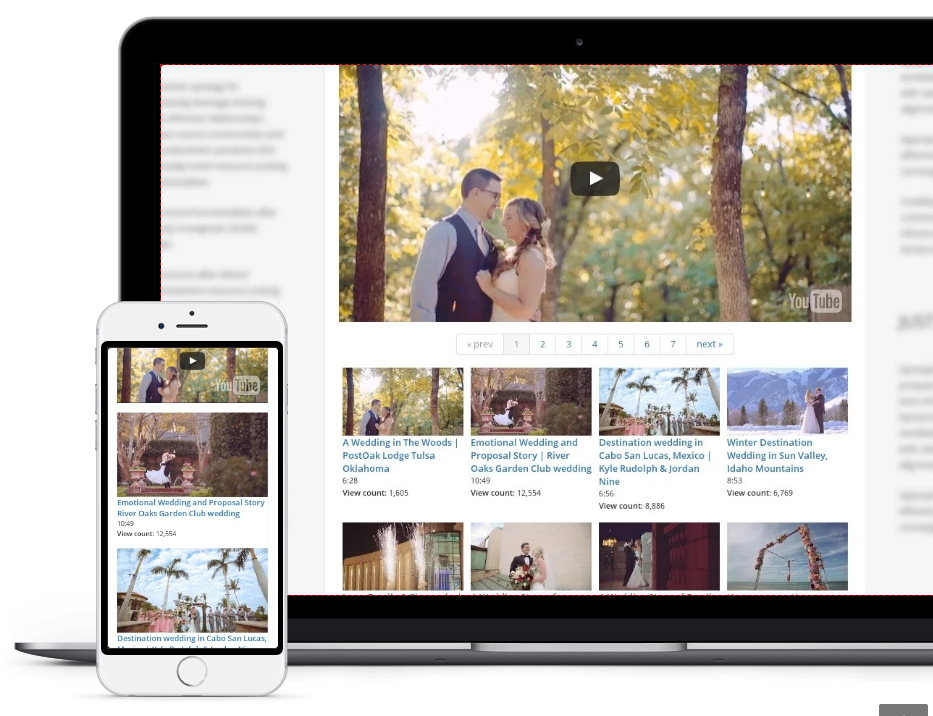
TubePress Reference Documentation

Beautiful YouTube Videos and Galleries in PHP

Eric Hough

Permission is granted to copy, distribute and/or modify this document under the terms of the GNU Free Documentation License, Version 1.3 or any later version published by the Free Software Foundation; with the Invariant Sections being all sections. A copy of the license is included in the section entitled "GNU Free Documentation License".


Table of Contents

Introduction
1. Acknowledgements
1. Download
1.1. Free WordPress Plugin
1.2. TubePress Pro
2. Installation
2.1. Free WordPress Plugin
2.2. TubePress Pro
3. Upgrading
3.1. WordPress (Free and Pro versions)
3.2. Standalone PHP (Pro version only)
4. TubePress Video Galleries
4.1. WordPress Posts and Pages (Free and Pro versions)
4.2. WordPress Templates (Pro only)
4.3. Standalone PHP (Pro version only)
4.4. Sidebar/Widget Galleries
5. Embedding a Single Video
6. Customizing
6.1. CSS
6.2. HTML Templates
7. TubePress Shortcodes
7.1. WordPress
7.2. Standalone PHP
7.3. TubePress Shortcode Reference
7.4. Embedded Player
7.5. Video Meta Display
7.6. Video Feed
7.7. Advanced
8. TubePress in Your Language
8.1. WordPress
8.2. Standalone PHP
9. Troubleshooting
9.1. Debugging
9.2. YouTube Connection Test
9.3. Check for required CSS and JS includes
9.4. Discussion Forum
9.5. Open an Issue
10. Contributing
10.1. Submitting Patches
10.2. I18N
10.3. Donate
A. Optional TubePress Pro Installations
A.1. ShadowBox
A.2. JW FLV Media Player
B. GNU Free Documentation License

Introduction

TubePress is a PHP library that displays beautiful YouTube videos and galleries in your web site. It's highly configurable and easy to use. Check out a demo gallery here.

There are two different TubePress packages available, both of which are open-sourced under the GPLv3.

  1. A WordPress plugin (free!)

  2. TubePress Pro (only $10)

    • All the features of the WordPress plugin

    • A stand-alone PHP5 library

    • A bunch of very cool extra features!

1 Acknowledgements

The following individuals have contributed code or other resources to this project. Thank you for your efforts!

1. Download

1.1 Free WordPress Plugin

1.1.1 Latest stable release

The latest packages of TubePress can always be downloaded as zip files from http://tubepress.org/download

1.1.2 Subversion

TubePress uses Subversion for version control. You can use any Subversion client to check out the latest developmental build of the WordPress plugin. The source for TubePress Pro is not publicly available. But as TubePress is GPL'd, TubePress Pro users will get all of the source code with their downloads.

1.1.2.1 Command line

If you have command line access to your server, and have a subversion client in your path, this method is the easiest.

  1. Change directories to wp-content/plugins

  2. Make sure you've removed any existing installs of TubePress from this directory

  3. Execute svn checkout http://tubepress.googlecode.com/svn/trunk/ tubepress

That's it! You'll now be using the very latest build of the plugin. You can now upgrade at any time with the following commands:

  1. Change directories to wp-content/plugins/tubepress

  2. Execute svn update

1.1.2.2 FTP

You'll need to check out the latest build locally (i.e. to your desktop machine) and then upload it to your server using FTP.

  1. Use any SVN client to browse to http://tubepress.googlecode.com/svn/trunk/

  2. Checkout the trunk directory to a local directory called tubepress

  3. Upload the tubepress directory you just created to your WordPress installation at wp-content/plugins

1.1.3 Nightly Builds

You can download a nightly build of the WordPress plugin package from http://tubepress.org/nightly/tubepress_nightly.zip

1.2 TubePress Pro

You can purchase your copy of TubePress Pro by visiting http://tubepress.org/download and clicking on the "Buy Now" link. After payment, please following the TubePress Pro installation instructions.

2. Installation

2.1 Free WordPress Plugin

TubePress can be installed and activated just like any other WordPress plugin. See the WordPress docs on plugin management for more information. For the impatient, here are the steps...

  1. Download the plugin from http://tubepress.org/download

  2. Unzip into your plugins directory at (wp-content/plugins)

  3. Activate TubePress from Site Admin > Plugins

  4. Configure from Site Admin > Settings > TubePress

  5. Type

    [tubepress]

    in a post or a page where you'd like to insert your gallery (this is actually the simplest form of a TubePress shortcode). See the image below for an example.

2.2 TubePress Pro

Installing TubePress Pro is easy...

  1. After you purchase TubePress Pro, check your email that you've registered with PayPal. You'll find an email that contains your download link. When you click on this link, your web browser will prompt you to download (or open) a zip file containing TubePress Pro. Click "Save file" and download the zip file to somewhere easy to find, like your desktop.

    As of this writing, the name of the zip file is tubepress_pro_1_8_9.zip.

  2. Unzip the file you just downloaded (tubepress_pro_1_8_9.zip). It will expand into a directory named tubepress_pro_1_8_9.

  3. Optional. Install ShadowBox and JW FLV Media Player support. Installation instructions for these libraries can be found in Appendix A, Optional TubePress Pro Installations.

Note

Non-WordPress users - don't be alarmed if you see references to WordPress code in your download. There are WordPress-specific files that allow TubePress Pro users to use the software in a WordPress environment if they choose to. This extra code will have absolutely no impact on the functionality or performance of TubePress Pro.

The last step in the installation, found below, depend on whether you're using TubePress Pro in WordPress or not.

2.2.1 Standalone PHP

If you will be using TubePress Pro outside of a WordPress environment, upload the entire tubepress_pro_1_8_9 directory to your web server in a place that's web accessible. Make a note of:

  • the full path of this directory on your web server's filesystem (e.g. /var/www/html/myblog.com/lib/tubepress_pro_1_8_9)

  • the web-accessible URL to reach this directory (e.g. http://myblog.com/lib/tubepress_pro_1_8_9)

Now you're ready to start integrating TubePress Pro into your site.

2.2.2 WordPress

If you will be using TubePress Pro inside a WordPress environment, just install the TubePress Pro directory into wp-content/plugins as you would any other WordPress Plugin. Then start adding galleries to your posts and pages and/or templates.

3. Upgrading

Users of the free WordPress plugin can always grab the latest version of TubePress by following the instructions in the download section. TubePress Pro users have free lifetime upgrades. To get the latest version of TubePress Pro, just use the download link that was sent to your after your purchase. If you lost the link, please just email me and I'll resend it to you.

3.1 WordPress (Free and Pro versions)

  1. Remove your existing TubePress install directory (wp-content/plugins/tubepress or wp-content/plugins/tubepress_pro_1_8_9)

  2. Unzip the latest version of TubePress into (wp-content/plugins)

  3. Visit Site Admin > Settings > TubePress once initialize your options

3.1.1 Initialize Options

If you'd like to reset your TubePress options to their default values, you can do so by using a special page nested inside the plugin.

If your blog URL is http://myblog.com you'd need to navigate to http://myblog.com/wp-content/plugins/tubepress/env/WordPress/functions/db_nuke.php with your web browser. Once there, you can just click the Reset TubePress Options button. Of course, you'll need to be a WordPress administrator (access level 9) for your blog to do this.

3.2 Standalone PHP (Pro version only)

To upgrade TubePress Pro in a stadalone PHP environment, simply repeat the TubePress Pro installation procedure with the latest copy of TubePress Pro. Then you'll simply need to change your tubepress_base_url and the inclusion of tubepress-pro.php to point to the new install location.

4. TubePress Video Galleries

4.1 WordPress Posts and Pages (Free and Pro versions)

As a WordPress plugin, TubePress lets you easily insert custom video galleries throughout your WordPress-powered blog. Just configure from Settings > TubePress, then type

[tubepress]

in a post or page where you'd like your gallery to appear.

The options in Settings > TubePress are the global options for TubePress. The real power of the plugin lies in the ability to put multiple galleries on multiple pages. This is done with TubePress shortcodes.

For example, say on one page I want to display a gallery of videos that are tagged with "football". On this page, I would type

[tubepress mode="tag" tagValue="football"]

on the page where I want the gallery to show up. And say on another page I want to display a gallery with the default (global) options that were set in Settings > TubePress. On this page I would type

[tubepress]

where I wanted the gallery to show up. You can follow this procedure for unlimited galleries on unlimited posts/pages. Just use any TubePress shortcode to control the gallery content. Get creative!

4.2 WordPress Templates (Pro only)

You can also use TubePress Pro to insert video galleries outside the WordPress Loop (i.e. in your WordPress templates). The code snippet below shows the world's simplest index page with TubePress Pro added. As you can see, there are only 2 steps.

<?php

    require_once "/var/www/html/myblog.com/wp-content/plugins/tubepress_pro_1_8_9/env/pro/tubepress-pro.php";     (1)

    get_header();

    print tubepressGallery('mode="tag" tagValue="barack obama" resultsPerPage="3"');                              (2)
    
    if (have_posts()) :
       while (have_posts()) :
          the_post();
          the_content();
       endwhile;
    endif;
    get_sidebar();
    get_footer(); 
?>
             

1

Include the TubePress Pro library file (tubepress-pro.php). An absolute path works best.

2

This statement prints out the TubePress gallery contents. It takes a single string parameter which is any valid TubePress shortcode, with or without the enclosing [tubepress wrapper. You repeat this function call as many times as you like.

4.3 Standalone PHP (Pro version only)

The following is a very simple PHP file that generates a gallery with TubePress Pro. As you can see, there are only four steps involved.

<!DOCTYPE html PUBLIC "-//W3C//DTD XHTML 1.0 Strict//EN" "http://www.w3.org/TR/xhtml1/DTD/xhtml1-strict.dtd">
<?php 

    $tubepress_base_url = "http://myblog.com/lib/tubepress_pro_1_8_9";                                  (1)

    require_once "/var/www/html/myblog.com/lib/tubepress_pro_1_8_9/env/pro/tubepress-pro.php";          (2)
?>

<html xmlns="http://www.w3.org/1999/xhtml" lang="en" xml:lang="en">
    <head>
        <title>TubePress Pro</title>
        <meta http-equiv="Content-Type" content="text/html; charset=utf-8"/>

        <?php print tubepressHeadElements(true); ?>                                                     (3)
    </head>
    <body>
        <div style="width:500px">

            <?php print tubepressGallery('mode="tag" tagValue="barack obama" resultsPerPage="3"'); ?>   (4)

        </div>
    </body>
</html>
                

1

Set tubepress_base_url to the web-accessible URL of your TubePress Pro installation.

2

Include the TubePress Pro library file (tubepress-pro.php). An absolute path works best.

3

Include this statement in the HEAD of your document to print out the required TubePress CSS and JavaScript libraries. It takes a single parameter which indicates whether or not to include jQuery. If you are already including jQuery in your document, use false for this parameter.

4

This statement prints out the TubePress gallery contents. It takes a single string parameter which is any valid TubePress shortcode, with or without the enclosing [tubepress wrapper. You repeat this function call as many times as you like to insert multiple galleries on a single page.

4.4 Sidebar/Widget Galleries

All versions of TubePress come with the ability to integrate a vertical gallery of videos in the sidebar of your site. You can fully customize the content and appearance of this sidebar as you would a regular TubePress gallery. Here's a sample of what the sidebar gallery can look like...

4.4.1 WordPress (Free and Pro versions)

Please see the WordPress widget documentation for general info on how to enable and disable widgets. This is what the TubePress widget control looks like at WP Admin > Appearance > Widgets...

In the "Title" section of the widget control, enter the text you'd like for the sidebar's header. To customize which videos show up in your sidebar, just use a TubePress shortcode. Please note that by default, the TubePress widget will use the following shortcode:

[tubepress resultsPerPage="3" views="false" description="true" descriptionLimit="50" playerLocation="popup" thumbHeight="105" thumbWidth="135" template="sidebar.tpl.php"]

Of course, like any TubePress shortcode, you can override any setting you like.

4.4.2 Standalone PHP (Pro version only)

Creating a sidebar gallery with TubePress Pro in standalone PHP is nearly identical to the procedure for creating video galleries in standalone PHP. The only difference is that you use the template shortcode attribute to tell your gallery to use the sidebar HTML template (sidebar.tpl.php). So your gallery generation statement would look like this...

<?php print tubepressGallery('mode="tag" tagValue="barack obama" resultsPerPage="3" template="sidebar.tpl.php"'); ?>

5. Embedding a Single Video

There are dozens of software programs that allow you to embed an individual video in your web site (e.g. oEmbed, Smart Youtube, WordPress shortcuts). TubePress distinguishes itself from the competition in that it lets you easily embed a video plus all of the video's meta information (length, description, author, keywords, etc). You can even have fine-grained control over how the meta information is presented with the video via TubePress's customization abilities. Here's an example of a TubePress embedded video vs. the competition...

TubePress's single video embedding (left) vs. the competition (right)

To embed a single video with TubePress, you simply use the video shortcode attribute to indicate the ID of the video you'd like to embed. For instance, if you want to embed the video with ID J51kfduN5aA, you would use use the following shortcode

[tubepress video="J51kfduN5aA"]

When embedding a single video, TubePress will use the templates located at ui/single_video/html_templates. You can adjust which meta information is displayed by using the regular meta display shortcodes. By default single video embeds will use ui/single_video/html_templates/default.tpl.php for a template, but you can follow the customization instructions to further adjust the appearance of the embedded video and its meta information.

6. Customizing

TubePress is designed to be easily customized. The appearance and structure of the galleries and videos it generates can be changed with some simple CSS and/or HTML modifications.

6.1 CSS

By adding a few snippets of CSS to your site, you can completely change the appearance of your video galleries and videos. This includes (but is not limited to)

  • the number of videos per row

  • the properties of the fonts

  • the alignment of videos and their surrounding text

  • the overall width/height of the thumbnail gallery

By default, TubePress will use the CSS stylesheet found at ui/gallery/css/tubepress.css. It is strongly recommended that you do not edit this file directly, as it will be regularly overwritten on upgrades to TubePress. Instead, simply override/add any TubePress-specific CSS properties via your site's existing CSS files.

A very easy way to experiment with CSS changes is by using FireBug. Here's a short introductory video about FireBug that will help you get started quickly

6.2 HTML Templates

Sometimes you need to change not just the style of the galleries, but the entire HTML structure. TubePress also makes this easy via customizable templates that require no special knowledge to edit. By default, TubePress ships with the following four templates:

  • ui/gallery/html_templates/default.tpl.php

    TubePress's standard template structure. Well suited for most sites.

  • ui/gallery/html_templates/sidebar.tpl.php

    A template designed for sidebars.

  • ui/gallery/html_templates/iphone-ipod.tpl.php

    TubePress will use this template when it detects the client is using an iPod/iPhone. It will allow the user to play your videos using Apple's YouTube player while remaining on your site.

  • ui/single_video/html_templates/default.tpl.php

    TubePress's default template for embedding a single video along with its meta information

The procedure for customizing templates is as follows

  1. Make a copy of the template you'd like to modify. This will protect your changes from future upgrades to TubePress. Make sure you store the copy alongside the other templates, either in ui/gallery/html_templates or ui/single_video/html_templates, as these are the only permissible locations for templates.

  2. Edit your copied template to suit your needs. Generally, the variables found in the default templates are the only ones available to the template.

  3. Tell TubePress to use your new template via the template shortcode. For instance

    [tubepress template="my_custom_template.tpl.php"]

    would tell TubePress to use the template located at ui/gallery/html_templates/my_custom_template.tpl.php. Or if you're embedding a single video

    [tubepress video="J51kfduN5aA" template="my_custom_template.tpl.php"]

    would tell TubePress to use the template located at ui/single_video/html_templates/my_custom_template.tpl.php

7. TubePress Shortcodes

TubePress shortcodes are small snippets of text that allow you to easily and completely control the content, style, and behavior of TubePress galleries. They are invoked slightly differently in the WordPress plugin and in TubePress Pro, but the actual shortcodes themselves are identical.

In TubePress terminology, a shortcode is a collection of name-value pairs (a.k.a. "attributes") that follow the pattern optionName=optionValue, where optionValue is wrapped with single or double quotes (e.g. foo="bar"). Each valid shortcode attribute is defined in Section 7.3, “TubePress Shortcode Reference”.

7.1 WordPress

TubePress shortcodes are very similar to WordPress shortcodes, but with minor syntax differences. TubePress will replace any TubePress shortcode it finds in a post or page with a video gallery. Each gallery can be configured completely independently from the others, based on the content of the shortcode.

The simplest shortcode is

[tubepress]

In a post or a page, TubePress will replace this shortcode with a video gallery defined by the default settings. You can override each TubePress setting by providing any of the shortcode attributes found in Section 7.3, “TubePress Shortcode Reference”.

7.2 Standalone PHP

In TubePress Pro, you can provide shortcode attributes found in Section 7.3, “TubePress Shortcode Reference” to the tubepressGallery function to completely control the behavior of your galleries. e.g.

print tubepressGallery("ajaxPagination='true' author='false'");

Each gallery can be configured completely independently from the others, based on the content of the shortcode.

7.3 TubePress Shortcode Reference

7.3.1 Gallery Content

These shortcodes determine which videos will populate the gallery

Table 7.1. Gallery Content Shortcodes

Mode NameDescriptionNotesExample
favorites and favoritesValue"Favorite" videos of a YouTube user. The YouTube user is defined by the value you supply to the favoritesValue attribute.Limited to 50 videos[tubepress mode="favorites" favoritesValue="3hough"]
recently_featured The lastest "featured" videos on YouTube's homepage [tubepress mode="recently_featured"]
most_discussedThe most-commented videos on YouTube [tubepress mode="most_discussed"]
most_linkedYouTube videos with the most links [tubepress mode="most_linked"]
most_recentYouTube videos most recently uploaded to YouTube [tubepress mode="most_recent"]
most_respondedYouTube videos with the most video responses [tubepress mode="most_responded"]
playlist and playlistValueVideos from a YouTube playlist. The playlist is defined by the value you supply to the playlistValue attribute.
  • Limited to 200 videos

  • Only public playlists can be shown with TubePress.

  • Videos will appear in the order in which they were added to the playlist.

[tubepress mode="playlist" playlistValue="6813408AE8D50E6F"]
mobileYouTube videos suitable for mobile devices [tubepress mode="mobile"]
tag and tagValueYouTube videos matching a search term. The search term is defined by the value you supply to the tagValue attribute. Limited to approximately 1000 videos[tubepress mode="tag" tagValue="barack obama john mccain"]
user and userValueYouTube videos uploaded by a specific YouTube user. The YouTube user is defined by the value you supply to the userValue attribute. Limited to approximately 1000 videos[tubepress mode="user" userValue="3hough"]

7.3.2 Single video embedding

Table 7.2. Single video shortcodes

SettingDescriptionNotesExample
videoThe ID of the video to embed [tubepress video="J51kfduN5aA"]

7.3.3 Display Options

These settings control the overall appearance of the gallery

Table 7.3. Display Options

SettingDescriptionValid Value(s)Example
ajaxPaginationTubePress Pro only. Use AJAX to paginate galleries asynchronously.
  • true

  • false

[tubepress ajaxPagination="true"]
descriptionLimitLimit the length of video descriptions to a certain number of characters. This can help prevent video descriptions from overflowing onto other thumbnails. Any positive integer[tubepress descriptionLimit="50"]
paginationAboveIf resultsPerPage is less than the total number of videos in the gallery, setting this value to true will display pagination links above the gallery thumbnails
  • true

  • false

[tubepress paginationAbove="true"]
paginationBelowIf resultsPerPage is less than the total number of videos in the gallery, setting this value to true will display pagination links below the gallery thumbnails
  • true

  • false

[tubepress paginationBelow="true"]
relativeDatesDisplay yesterday instead of November 3, 2009, for instance.
  • true

  • false

[tubepress relativeDates="true"]
resultsPerPageHow many video thumbnails to display on a single pageAny integer x such that 0 < x <= 50[tubepress resultsPerPage="30"]
templateCustom templateName of a readable file located in ui/gallery/html_templates (for galleries) or ui/single_video/html_templates (for single videos). These are the only permissible locations for custom templates.[tubepress template="custom_template.tpl.html"]
thumbHeightVertical size (in px) of thumbnailsAny integer x such that 0 < x <= 90[tubepress thumbHeight="45"]
thumbWidthHorizontal size (in px) of thumbnailsAny integer x such that 0 < x <= 120[tubepress thumbWidth="60"]

7.3.4 Player Locations

In TubePress terminology, a "player location" defines where the embedded video player will appear after the user clicks a thumbnail to play a video. TubePress offers several different options, each of which can be activated by supplying the desired value to the playerLocation shortcode attribute.

Table 7.4. Player Locations

playerLocation ValueDescriptionExample
fancyboxTubePress Pro only. Plays videos using FancyBox[tubepress playerLocation="fancybox"]
jqmodalPlays videos using jqModal[tubepress playerLocation="jqModal"]
normal

Plays videos in an embedded Flash player above the video thumbnails. If you'd like the page to load with a specific video at the top of the gallery, just add the video's ID to the address of you gallery as the tubepress_video parameter.

For instance, given a gallery with a URL of http://mygallery.com, navigating to http://mygallery.com?tubepress_video=CNo7Hm0IOag would start the gallery with the video with ID CNo7Hm0IOag in the embedded player.

[tubepress playerLocation="normal"]
popupPlays videos in an HTML popup window[tubepress playerLocation="popup"]
shadowboxPlays videos using ShadowBox[tubepress playerLocation="shadowbox"]
staticBehaves exactly the same as the normal player, but each thumbnail click will trigger a page refresh. This can be useful if you want to increase page loads for advertising purposes. It also makes it clearer to your users on how they can share links to individual videos.[tubepress playerLocation="static"]
tinyboxTubePress Pro only. Plays videos using TinyBox[tubepress playerLocation="tinybox"]
youtube Redirects to the video's original YouTube page [tubepress playerLocation="youtube"]

7.3.5 Video Sort Order

The sorting capabilities of TubePress are limited by the providers of the videos (e.g. YouTube). Sorting functionality can be quirky, and there are some limitations. Below are the shortcodes, all based on the orderBy attribute, that control the video sort order.

Table 7.5. Video Sort Order

orderBy ValueDescriptionNotesExample
published Show videos in the order they were published YouTube galleries will show more-recent videos first[tubepress orderBy="published"]
viewCount Shows videos in order of how many times they've been viewed YouTube galleries will show more-viewed videos first[tubepress orderBy="viewCount"]
rating Shows videos in order of their rating YouTube galleries will show higher-rated videos first[tubepress orderBy="rating"]
relevance Shows videos in order of relevance Only applies to YouTube tag galleries[tubepress orderBy="relevance"]
random Shuffles videos for a given gallery page Will only randomize the order for a single gallery page. e.g. If you have a gallery with a total of 500 videos, with 20 videos per page, only 20 videos at a time will be shuffled. This is a restriction on YouTube's end.[tubepress orderBy="random"]

Note

Please note that these galleries can't be sorted

  • A gallery of a user's favorite videos (mode="favorites") will always be sorted in the order that the videos were favorited.

  • A playlist gallery (mode="playlist") will always be sorted in the order that the videos appear in the playlist

7.4 Embedded Player

These shortcodes control the appearance and behavior the embedded Flash player.

Table 7.6. Embedded Player Shortcodes

SettingDescriptionValid ValuesExample
autoplayStart video playback without user intervention
  • true

  • false

[tubepress autoplay="true"]
borderFrame embedded player
  • true

  • false

[tubepress border="true"]
embeddedHeightVertical size (in px) of embedded playerAny positive integer[tubepress embeddedHeight="true"]
embeddedWidthHorizontal size (in px) of embedded playerAny positive integer[tubepress embeddedWidth="true"]
fullscreenAllow fullscreen playback
  • true

  • false

[tubepress fullscreen="true"]
genieDisplay "genie" menu during video playback
  • true

  • false

[tubepress genie="true"]
hdDisplay high definition videos
  • true

  • false

[tubepress hd="true"]
loopRepeat videos without user intervention
  • true

  • false

[tubepress loop="true"]
playerColorPrimary and secondary colors of embedded playerTwo HTML color values in hex, combined with a single forward slash[tubepress playerColor="0xffaabb/0xaa2233"]
playerImplementationChoose vendor of embedded Flash player. Current choices are the standard YouTube player, or the JW FLV Media Player from LongTail.
  • youtube

  • longtail

[tubepress playerImplementation="longtail"]
showInfoDisplay title and rating before playback
  • true

  • false

[tubepress showInfo="true"]
showRelatedDisplay related videos after playback
  • true

  • false

[tubepress showRelated="true"]

7.5 Video Meta Display

These shortcodes control what information is displayed below each video thumbnail.

Table 7.7. Video Meta Display

SettingDescriptionValid ValuesExample
authorDisplay video author
  • true

  • false

[tubepress author="true"]
categoryDisplay video category
  • true

  • false

[tubepress category="false"]
descriptionDisplay video description
  • true

  • false

[tubepress description="false"]
idDisplay video ID
  • true

  • false

[tubepress id="true"]
lengthDisplay video run time
  • true

  • false

[tubepress length="false"]
ratingDisplay average video rating
  • true

  • false

[tubepress rating="true"]
ratingsDisplay video rating count
  • true

  • false

[tubepress ratings="true"]
tagsDisplay video keywords
  • true

  • false

[tubepress tags="false"]
titleDisplay video title
  • true

  • false

[tubepress title="true"]
uploadedDisplay video upload timestamp
  • true

  • false

[tubepress uploaded="false"]
urlDisplay video URL on YouTube
  • true

  • false

[tubepress url="false"]
viewsDisplay video view count
  • true

  • false

[tubepress views="true"]

7.6 Video Feed

These shortcodes control how TubePress interacts with content providers (e.g. YouTube)

Table 7.8. Video Feed Shortcodes

SettingDescriptionValid ValuesExample
cacheEnabled Use a file-based cache to store responses from provider
  • true

  • false

[tubepress cacheEnabled="false"]
clientKey The YouTube Client Key when interacting with YouTube Any valid YouTube Client Key[tubepress clientKey="33AEF33BBC344"]
developerKey The YouTube Developer Key when interacting with YouTube Any valid YouTube Developer Key[tubepress developerKey="33AEF33BBC344"]
embeddableOnly Only retrieve videos that can be embedded in other sites
  • true

  • false

[tubepress embeddableOnly="true"]
filter_racy Retrieve videos that may be unsuitable for minors
  • true

  • false

[tubepress filter_racy="true"]
resultCountCapMaximum total videos to retrieveAny integer x such that x >= 0This can help to reduce the number of pages in your gallery. Set to "0" to remove any limit.

7.7 Advanced

Various features that casual users will not likely need or want to adjust

Table 7.9. Advanced Shortcodes

SettingDescriptionValid ValuesExample
dateFormatFormatting of date information for videos. See http://us.php.net/date for examplesAny valid string as defined by http://php.net/date[tubepress dateFormat="l jS \of F Y h:i:s A"]
debugging_enabledEnable ability to perform remote debugging
  • true

  • false

[tubepress debugging_enabled="false"]
randomize_thumbnailsRandomize thumbnail selection for each video (each video comes with several thumbnails)
  • true

  • false

[tubepress randomize_thumbnails="false"]

8. TubePress in Your Language

Built on the gettext framework, TubePress is available in several languages. The list of available languages (which is always growing) can be found at the features page. If you would like to donate a translation into your own language, instructions for how to do this can be found here.

TubePress in Italian (left) and Russian (right)

8.1 WordPress

TubePress will determine which language to use based on the WP_LANG setting that you can define in wp-config.php. Details for how to switch the language of your WordPress blog can be found here.

8.2 Standalone PHP

Switching the language of TubePress Pro is very easy. Thanks to the php-gettext library, your installation of PHP does not need compiled-in gettext support. In fact, as the code listing below shows, you just need to add a single line of code to switch TubePress's language.

    ...
    
    define('LANG', 'it_IT');   (1)
    require_once "/var/www/html/myblog.com/lib/tubepress_pro_1_8_9/env/pro/tubepress-pro.php";

    ...
                

1

Define the LANG environment variable to your two or four letter language code. Add this statement somewhere before the inclusion of tubepress-pro.php

9. Troubleshooting

TubePress is designed to work on any server that runs PHP5, and it's designed to be experienced by any web browser in any operating system. Given the vast number of possible permutations of these elements, it's no surprise that a small percentage of TubePress installations just won't quite work the way they should. The good news is that 90% of installation problems can be diagnosed and resolved by following the simple guidelines listed in this section.

9.1 Debugging

Putting TubePress into debug mode will dump a large amount of information to the screen. To use it, you just need to add tubepress_debug=true to the URL string (in your browser's address bar). For instance, if the TubePress page you're trying to debug has an address of http://ehough.com/?page_id=19 then you should add tubepress_debug=true to the URL to enable debugging: http://ehough.com/?page_id=19&tubepress_debug=true.

Most of the debug output is self-explanatory. If the output is cut off unexpectedly, it's likely that TubePress encountered a fatal error while building a gallery. Check your PHP error logs for more information.

9.2 YouTube Connection Test

Some web servers place restrictions on what PHP functions are allowed to execute. TubePress needs the ability to open network connections to remote servers. One way to verify that TubePress has this ability is to run the YouTube connection test. You can find a link to the test in the debug output. The test will attempt to retrieve the HTML content of YouTube's homepage, and then it will execute a sample video query against YouTube's API. The result of the latter will be printed to the screen as plain XML.

9.3 Check for required CSS and JS includes

Any page that uses TubePress needs to have tubepress.css and tubepress.js loaded in the HTML head of the document. If these files are missing, your galleries will show up unstyled (ugly!) and non-functional; thumbnails won't respond to clicking on them. You can view your HTML source or use FireBug to verify if these files are being loaded correctly.

In WordPress, these files are automatically loaded via your theme's wp_head() function invocation. However, some custom themes will (accidentally or intentionally) omit this call. Switching back to the "classic" WordPress theme will verify if your custom theme is the culprit. Here is some further information on including the wp_head() function in your theme.

In TubePress Pro, you just need to make sure that you include the statement somewhere in the head of your HTML document. See the TubePress Pro usage instructions for more information.

9.4 Discussion Forum

Still can't solve your issue? Try searching or posting in the TubePress discussion forum, hosted by Google Groups. It is strongly recommended that you send along a link to your gallery if you're experiencing difficulty.

Note

The forum is open to the public for reading, but you'll need a Google Account to post

9.5 Open an Issue

If you can't find a solution to your problem in the discussion forum, someone may have already submitted a trouble ticket. The current list of issues can be found at http://code.google.com/p/tubepress/issues/list. Please feel free to submit a trouble ticket or feature request.

Note

The issues list is open to the public for reading, but you'll need a Google Account to post a new issue or comment on an existing issue

10. Contributing

10.1 Submitting Patches

Patches are always welcome! You'll receive full credit for your contribution, of course. Here's how to submit

  1. Checkout the trunk version of TubePress

  2. Generate your patch against it

  3. Submit your patch as an attachment to a new issue at http://code.google.com/p/tubepress/issues/list

10.2 I18N

TubePress can be translated into any language using the gettext framework. To submit a translation...

  1. Translate the words/phrases in this file from English to your native language

  2. Attach the translated file as an attachment to a new issue. Please be sure to note your two-digit country code and your two-digit language code.

You will, of course, receive full credit for your contribution to an open source project! If you're interested in the gory details of how it works, I highly recommend reading WordPress's excellent i18n documentation.

10.3 Donate

TubePress is an open source project. I've spent many long nights working on this project. If you enjoy the software, please consider a donation. No amount is too small. Thank you!

Appendix A. Optional TubePress Pro Installations

Due to licensing restrictions, TubePress Pro does not ship with every library that the free WordPress plugin includes. However, it's very easy to install these optional libraries manually. This section provides installation instructions.

A.1 ShadowBox

  1. Download ShadowBox from here. It will save to a file named something like shadowbox-build-3.0rc1.zip.

  2. Unzip this file. It will expand into a directory named shadowbox-build-3.0rc1.

  3. Copy the contents of this directory (not the directory itself) to your TubePress Pro installation at tubepress_pro_1_8_9/ui/players/shadowbox/lib/.

A.2 JW FLV Media Player

  1. Download the JW FLV Media Player from here. It will save to a file named something like mediaplayer.zip.

  2. Unzip this file. It will expand into a directory named mediaplayer.

  3. Copy the contents of this directory (not the directory itself) to your TubePress Pro installation at tubepress_pro_1_8_9/ui/embedded_flash/longtail/lib/.

Appendix B. GNU Free Documentation License

Version 1.3, 3 November 2008

Copyright © 2000, 2001, 2002, 2007, 2008 Free Software Foundation, Inc.

Everyone is permitted to copy and distribute verbatim copies of this license document, but changing it is not allowed.

0. PREAMBLE

The purpose of this License is to make a manual, textbook, or other functional and useful document “free” in the sense of freedom: to assure everyone the effective freedom to copy and redistribute it, with or without modifying it, either commercially or noncommercially. Secondarily, this License preserves for the author and publisher a way to get credit for their work, while not being considered responsible for modifications made by others.

This License is a kind of “copyleft”, which means that derivative works of the document must themselves be free in the same sense. It complements the GNU General Public License, which is a copyleft license designed for free software.

We have designed this License in order to use it for manuals for free software, because free software needs free documentation: a free program should come with manuals providing the same freedoms that the software does. But this License is not limited to software manuals; it can be used for any textual work, regardless of subject matter or whether it is published as a printed book. We recommend this License principally for works whose purpose is instruction or reference.

1. APPLICABILITY AND DEFINITIONS

This License applies to any manual or other work, in any medium, that contains a notice placed by the copyright holder saying it can be distributed under the terms of this License. Such a notice grants a world-wide, royalty-free license, unlimited in duration, to use that work under the conditions stated herein. The “Document”, below, refers to any such manual or work. Any member of the public is a licensee, and is addressed as “you”. You accept the license if you copy, modify or distribute the work in a way requiring permission under copyright law.

A “Modified Version” of the Document means any work containing the Document or a portion of it, either copied verbatim, or with modifications and/or translated into another language.

A “Secondary Section” is a named appendix or a front-matter section of the Document that deals exclusively with the relationship of the publishers or authors of the Document to the Document’s overall subject (or to related matters) and contains nothing that could fall directly within that overall subject. (Thus, if the Document is in part a textbook of mathematics, a Secondary Section may not explain any mathematics.) The relationship could be a matter of historical connection with the subject or with related matters, or of legal, commercial, philosophical, ethical or political position regarding them.

The “Invariant Sections” are certain Secondary Sections whose titles are designated, as being those of Invariant Sections, in the notice that says that the Document is released under this License. If a section does not fit the above definition of Secondary then it is not allowed to be designated as Invariant. The Document may contain zero Invariant Sections. If the Document does not identify any Invariant Sections then there are none.

The “Cover Texts” are certain short passages of text that are listed, as Front-Cover Texts or Back-Cover Texts, in the notice that says that the Document is released under this License. A Front-Cover Text may be at most 5 words, and a Back-Cover Text may be at most 25 words.

A “Transparent” copy of the Document means a machine-readable copy, represented in a format whose specification is available to the general public, that is suitable for revising the document straightforwardly with generic text editors or (for images composed of pixels) generic paint programs or (for drawings) some widely available drawing editor, and that is suitable for input to text formatters or for automatic translation to a variety of formats suitable for input to text formatters. A copy made in an otherwise Transparent file format whose markup, or absence of markup, has been arranged to thwart or discourage subsequent modification by readers is not Transparent. An image format is not Transparent if used for any substantial amount of text. A copy that is not “Transparent” is called “Opaque”.

Examples of suitable formats for Transparent copies include plain ASCII without markup, Texinfo input format, LaTeX input format, SGML or XML using a publicly available DTD, and standard-conforming simple HTML, PostScript or PDF designed for human modification. Examples of transparent image formats include PNG, XCF and JPG. Opaque formats include proprietary formats that can be read and edited only by proprietary word processors, SGML or XML for which the DTD and/or processing tools are not generally available, and the machine-generated HTML, PostScript or PDF produced by some word processors for output purposes only.

The “Title Page” means, for a printed book, the title page itself, plus such following pages as are needed to hold, legibly, the material this License requires to appear in the title page. For works in formats which do not have any title page as such, “Title Page” means the text near the most prominent appearance of the work’s title, preceding the beginning of the body of the text.

The “publisher” means any person or entity that distributes copies of the Document to the public.

A section “Entitled XYZ” means a named subunit of the Document whose title either is precisely XYZ or contains XYZ in parentheses following text that translates XYZ in another language. (Here XYZ stands for a specific section name mentioned below, such as “Acknowledgements”, “Dedications”, “Endorsements”, or “History”.) To “Preserve the Title” of such a section when you modify the Document means that it remains a section “Entitled XYZ” according to this definition.

The Document may include Warranty Disclaimers next to the notice which states that this License applies to the Document. These Warranty Disclaimers are considered to be included by reference in this License, but only as regards disclaiming warranties: any other implication that these Warranty Disclaimers may have is void and has no effect on the meaning of this License.

2. VERBATIM COPYING

You may copy and distribute the Document in any medium, either commercially or noncommercially, provided that this License, the copyright notices, and the license notice saying this License applies to the Document are reproduced in all copies, and that you add no other conditions whatsoever to those of this License. You may not use technical measures to obstruct or control the reading or further copying of the copies you make or distribute. However, you may accept compensation in exchange for copies. If you distribute a large enough number of copies you must also follow the conditions in section 3.

You may also lend copies, under the same conditions stated above, and you may publicly display copies.

3. COPYING IN QUANTITY

If you publish printed copies (or copies in media that commonly have printed covers) of the Document, numbering more than 100, and the Document’s license notice requires Cover Texts, you must enclose the copies in covers that carry, clearly and legibly, all these Cover Texts: Front-Cover Texts on the front cover, and Back-Cover Texts on the back cover. Both covers must also clearly and legibly identify you as the publisher of these copies. The front cover must present the full title with all words of the title equally prominent and visible. You may add other material on the covers in addition. Copying with changes limited to the covers, as long as they preserve the title of the Document and satisfy these conditions, can be treated as verbatim copying in other respects.

If the required texts for either cover are too voluminous to fit legibly, you should put the first ones listed (as many as fit reasonably) on the actual cover, and continue the rest onto adjacent pages.

If you publish or distribute Opaque copies of the Document numbering more than 100, you must either include a machine-readable Transparent copy along with each Opaque copy, or state in or with each Opaque copy a computer-network location from which the general network-using public has access to download using public-standard network protocols a complete Transparent copy of the Document, free of added material. If you use the latter option, you must take reasonably prudent steps, when you begin distribution of Opaque copies in quantity, to ensure that this Transparent copy will remain thus accessible at the stated location until at least one year after the last time you distribute an Opaque copy (directly or through your agents or retailers) of that edition to the public.

It is requested, but not required, that you contact the authors of the Document well before redistributing any large number of copies, to give them a chance to provide you with an updated version of the Document.

4. MODIFICATIONS

You may copy and distribute a Modified Version of the Document under the conditions of sections 2 and 3 above, provided that you release the Modified Version under precisely this License, with the Modified Version filling the role of the Document, thus licensing distribution and modification of the Modified Version to whoever possesses a copy of it. In addition, you must do these things in the Modified Version:

  1. Use in the Title Page (and on the covers, if any) a title distinct from that of the Document, and from those of previous versions (which should, if there were any, be listed in the History section of the Document). You may use the same title as a previous version if the original publisher of that version gives permission.
  2. List on the Title Page, as authors, one or more persons or entities responsible for authorship of the modifications in the Modified Version, together with at least five of the principal authors of the Document (all of its principal authors, if it has fewer than five), unless they release you from this requirement.
  3. State on the Title page the name of the publisher of the Modified Version, as the publisher.
  4. Preserve all the copyright notices of the Document.
  5. Add an appropriate copyright notice for your modifications adjacent to the other copyright notices.
  6. Include, immediately after the copyright notices, a license notice giving the public permission to use the Modified Version under the terms of this License, in the form shown in the Addendum below.
  7. Preserve in that license notice the full lists of Invariant Sections and required Cover Texts given in the Document’s license notice.
  8. Include an unaltered copy of this License.
  9. Preserve the section Entitled “History”, Preserve its Title, and add to it an item stating at least the title, year, new authors, and publisher of the Modified Version as given on the Title Page. If there is no section Entitled “History” in the Document, create one stating the title, year, authors, and publisher of the Document as given on its Title Page, then add an item describing the Modified Version as stated in the previous sentence.
  10. Preserve the network location, if any, given in the Document for public access to a Transparent copy of the Document, and likewise the network locations given in the Document for previous versions it was based on. These may be placed in the “History” section. You may omit a network location for a work that was published at least four years before the Document itself, or if the original publisher of the version it refers to gives permission.
  11. For any section Entitled “Acknowledgements” or “Dedications”, Preserve the Title of the section, and preserve in the section all the substance and tone of each of the contributor acknowledgements and/or dedications given therein.
  12. Preserve all the Invariant Sections of the Document, unaltered in their text and in their titles. Section numbers or the equivalent are not considered part of the section titles.
  13. Delete any section Entitled “Endorsements”. Such a section may not be included in the Modified Version.
  14. Do not retitle any existing section to be Entitled “Endorsements” or to conflict in title with any Invariant Section.
  15. Preserve any Warranty Disclaimers.

If the Modified Version includes new front-matter sections or appendices that qualify as Secondary Sections and contain no material copied from the Document, you may at your option designate some or all of these sections as invariant. To do this, add their titles to the list of Invariant Sections in the Modified Version’s license notice. These titles must be distinct from any other section titles.

You may add a section Entitled “Endorsements”, provided it contains nothing but endorsements of your Modified Version by various parties — for example, statements of peer review or that the text has been approved by an organization as the authoritative definition of a standard.

You may add a passage of up to five words as a Front-Cover Text, and a passage of up to 25 words as a Back-Cover Text, to the end of the list of Cover Texts in the Modified Version. Only one passage of Front-Cover Text and one of Back-Cover Text may be added by (or through arrangements made by) any one entity. If the Document already includes a cover text for the same cover, previously added by you or by arrangement made by the same entity you are acting on behalf of, you may not add another; but you may replace the old one, on explicit permission from the previous publisher that added the old one.

The author(s) and publisher(s) of the Document do not by this License give permission to use their names for publicity for or to assert or imply endorsement of any Modified Version.

5. COMBINING DOCUMENTS

You may combine the Document with other documents released under this License, under the terms defined in section 4 above for modified versions, provided that you include in the combination all of the Invariant Sections of all of the original documents, unmodified, and list them all as Invariant Sections of your combined work in its license notice, and that you preserve all their Warranty Disclaimers.

The combined work need only contain one copy of this License, and multiple identical Invariant Sections may be replaced with a single copy. If there are multiple Invariant Sections with the same name but different contents, make the title of each such section unique by adding at the end of it, in parentheses, the name of the original author or publisher of that section if known, or else a unique number. Make the same adjustment to the section titles in the list of Invariant Sections in the license notice of the combined work.

In the combination, you must combine any sections Entitled “History” in the various original documents, forming one section Entitled “History”; likewise combine any sections Entitled “Acknowledgements”, and any sections Entitled “Dedications”. You must delete all sections Entitled “Endorsements”.

6. COLLECTIONS OF DOCUMENTS

You may make a collection consisting of the Document and other documents released under this License, and replace the individual copies of this License in the various documents with a single copy that is included in the collection, provided that you follow the rules of this License for verbatim copying of each of the documents in all other respects.

You may extract a single document from such a collection, and distribute it individually under this License, provided you insert a copy of this License into the extracted document, and follow this License in all other respects regarding verbatim copying of that document.

7. AGGREGATION WITH INDEPENDENT WORKS

A compilation of the Document or its derivatives with other separate and independent documents or works, in or on a volume of a storage or distribution medium, is called an “aggregate” if the copyright resulting from the compilation is not used to limit the legal rights of the compilation’s users beyond what the individual works permit. When the Document is included in an aggregate, this License does not apply to the other works in the aggregate which are not themselves derivative works of the Document.

If the Cover Text requirement of section 3 is applicable to these copies of the Document, then if the Document is less than one half of the entire aggregate, the Document’s Cover Texts may be placed on covers that bracket the Document within the aggregate, or the electronic equivalent of covers if the Document is in electronic form. Otherwise they must appear on printed covers that bracket the whole aggregate.

8. TRANSLATION

Translation is considered a kind of modification, so you may distribute translations of the Document under the terms of section 4. Replacing Invariant Sections with translations requires special permission from their copyright holders, but you may include translations of some or all Invariant Sections in addition to the original versions of these Invariant Sections. You may include a translation of this License, and all the license notices in the Document, and any Warranty Disclaimers, provided that you also include the original English version of this License and the original versions of those notices and disclaimers. In case of a disagreement between the translation and the original version of this License or a notice or disclaimer, the original version will prevail.

If a section in the Document is Entitled “Acknowledgements”, “Dedications”, or “History”, the requirement (section 4) to Preserve its Title (section 1) will typically require changing the actual title.

9. TERMINATION

You may not copy, modify, sublicense, or distribute the Document except as expressly provided under this License. Any attempt otherwise to copy, modify, sublicense, or distribute it is void, and will automatically terminate your rights under this License.

However, if you cease all violation of this License, then your license from a particular copyright holder is reinstated (a) provisionally, unless and until the copyright holder explicitly and finally terminates your license, and (b) permanently, if the copyright holder fails to notify you of the violation by some reasonable means prior to 60 days after the cessation.

Moreover, your license from a particular copyright holder is reinstated permanently if the copyright holder notifies you of the violation by some reasonable means, this is the first time you have received notice of violation of this License (for any work) from that copyright holder, and you cure the violation prior to 30 days after your receipt of the notice.

Termination of your rights under this section does not terminate the licenses of parties who have received copies or rights from you under this License. If your rights have been terminated and not permanently reinstated, receipt of a copy of some or all of the same material does not give you any rights to use it.

10. FUTURE REVISIONS OF THIS LICENSE

The Free Software Foundation may publish new, revised versions of the GNU Free Documentation License from time to time. Such new versions will be similar in spirit to the present version, but may differ in detail to address new problems or concerns. See Copyleft.

Each version of the License is given a distinguishing version number. If the Document specifies that a particular numbered version of this License “or any later version” applies to it, you have the option of following the terms and conditions either of that specified version or of any later version that has been published (not as a draft) by the Free Software Foundation. If the Document does not specify a version number of this License, you may choose any version ever published (not as a draft) by the Free Software Foundation. If the Document specifies that a proxy can decide which future versions of this License can be used, that proxy’s public statement of acceptance of a version permanently authorizes you to choose that version for the Document.

11. RELICENSING

“Massive Multiauthor Collaboration Site” (or “MMC Site”) means any World Wide Web server that publishes copyrightable works and also provides prominent facilities for anybody to edit those works. A public wiki that anybody can edit is an example of such a server. A “Massive Multiauthor Collaboration” (or “MMC”) contained in the site means any set of copyrightable works thus published on the MMC site.

“CC-BY-SA” means the Creative Commons Attribution-Share Alike 3.0 license published by Creative Commons Corporation, a not-for-profit corporation with a principal place of business in San Francisco, California, as well as future copyleft versions of that license published by that same organization.

“Incorporate” means to publish or republish a Document, in whole or in part, as part of another Document.

An MMC is “eligible for relicensing” if it is licensed under this License, and if all works that were first published under this License somewhere other than this MMC, and subsequently incorporated in whole or in part into the MMC, (1) had no cover texts or invariant sections, and (2) were thus incorporated prior to November 1, 2008.

The operator of an MMC Site may republish an MMC contained in the site under CC-BY-SA on the same site at any time before August 1, 2009, provided the MMC is eligible for relicensing.

ADDENDUM: How to use this License for your documents

To use this License in a document you have written, include a copy of the License in the document and put the following copyright and license notices just after the title page:

Copyright © YEAR YOUR NAME

Permission is granted to copy, distribute and/or modify this document under the
terms of the GNU Free Documentation License, Version 1.3 or any later version
published by the Free Software Foundation; with no Invariant Sections, no
Front-Cover Texts, and no Back-Cover Texts. A copy of the license is included in
the section entitled “GNU Free Documentation License”.

If you have Invariant Sections, Front-Cover Texts and Back-Cover Texts, replace the “with… Texts.” line with this:

with the Invariant Sections being LIST THEIR TITLES, with the Front-Cover Texts
being LIST, and with the Back-Cover Texts being LIST.

If you have Invariant Sections without Cover Texts, or some other combination of the three, merge those two alternatives to suit the situation.

If your document contains nontrivial examples of program code, we recommend releasing these examples in parallel under your choice of free software license, such as the GNU General Public License, to permit their use in free software.